
When patching or updating applications, there are often scenarios where additional steps must be executed before or after the actual install or uninstall process. Typical examples include stopping services, backing up configuration files, modifying registry keys, or triggering cleanup tasks.
This is where Custom App Settings in Robopack provide significant value.
The Use Case
You want to patch an existing application, but the standard update process is not sufficient on its own. Instead, you need:
- Pre-actions before installation (e.g. stopping services, removing locks)
- Post-actions after installation (e.g. reconfiguring settings, restarting services)
- Optional logic during uninstall or repair operations
Embedding these actions directly into the package ensures consistency, repeatability, and eliminates the need for external scripts.
The Solution: Custom App Settings
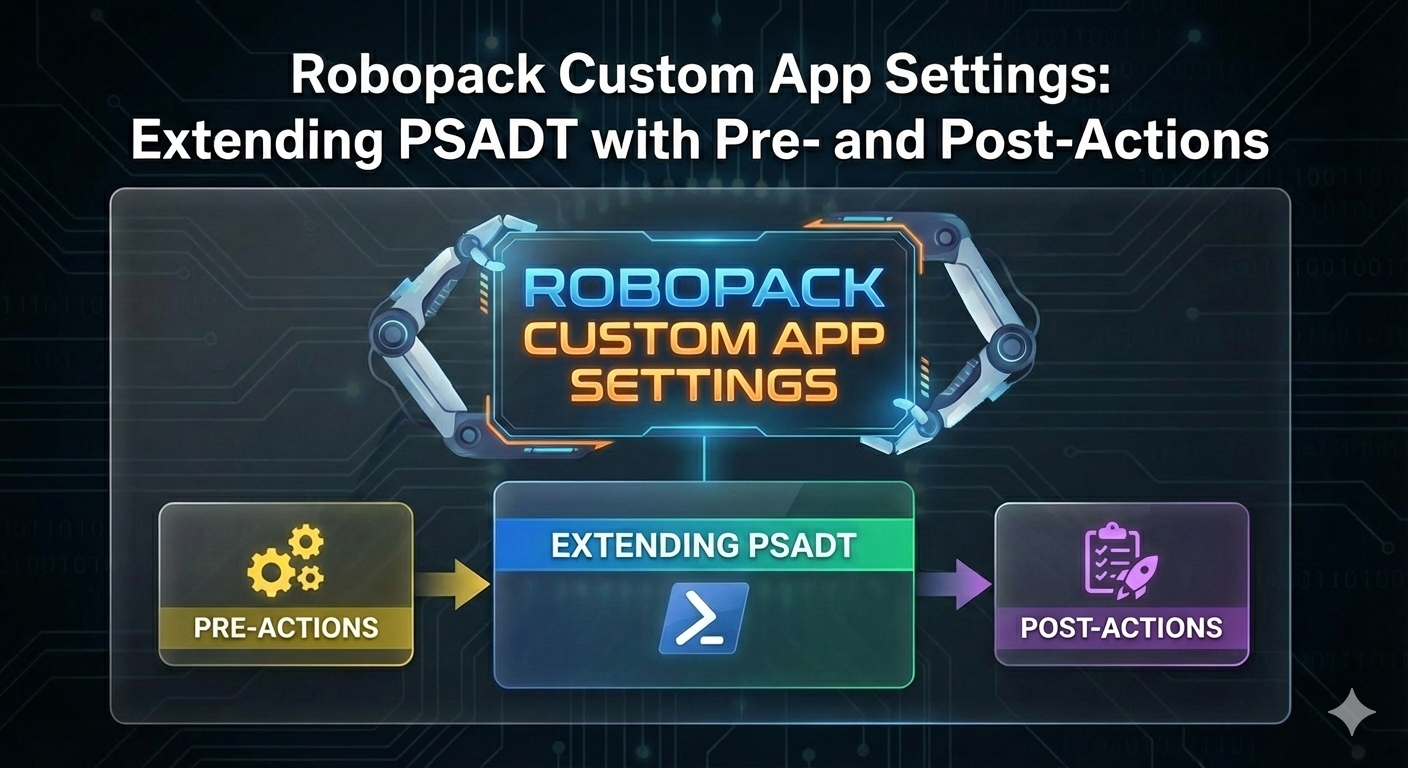
Robopack allows you to extend the PSAppDeployToolkit (PSADT) workflow by using Custom App Settings.

The approach is straightforward:
- Create a Custom App Setting
Within Robopack, define a new custom app setting and select the appropriate script template. - Select the Script Type (PSADT Version)
When creating the custom setting, you can choose the script type:- PSADT v3
- PSADT v4
- Any
In practice, PSADT v3 and v4 behave differently, especially in structure, function naming, and lifecycle handling.
For modern packages, PSADT v4 should be the preferred choice. The meaning of the “Any” option is not explicitly documented. Most likely, Robopack handles this internally and ensures that the custom section is injected into the correct PSADT version used by the package. It is reasonable to assume that this provides forward compatibility and may automatically align with PSADT v4 during packaging or future migrations, but this behavior is handled entirely by Robopack in the background.
- Choose the Execution Context
You can target specific PSADT phases, including:- Pre-Install
- Install
- Post-Install
- Pre-Uninstall
- Uninstall
- Post-Uninstall
- Pre-Repair
- Repair
- Post-Repair
- Extend the PSADT Flow
Paste your PowerShell logic directly into the Command section of the custom app setting.
Robopack automatically injects this code into the generated PSADT script at the appropriate location. - Package and Validate
After building the package, you can inspect the generated installation script under Recent Packages to confirm that your custom logic has been merged correctly into the PSADT flow.
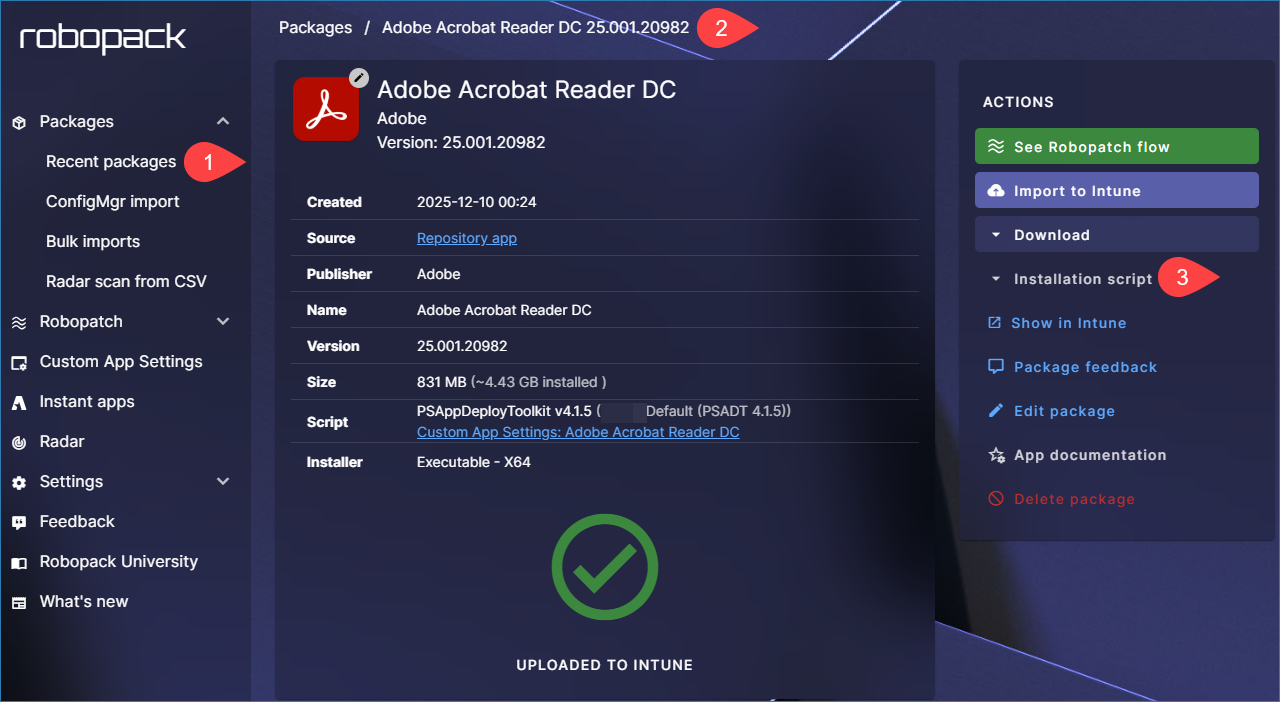
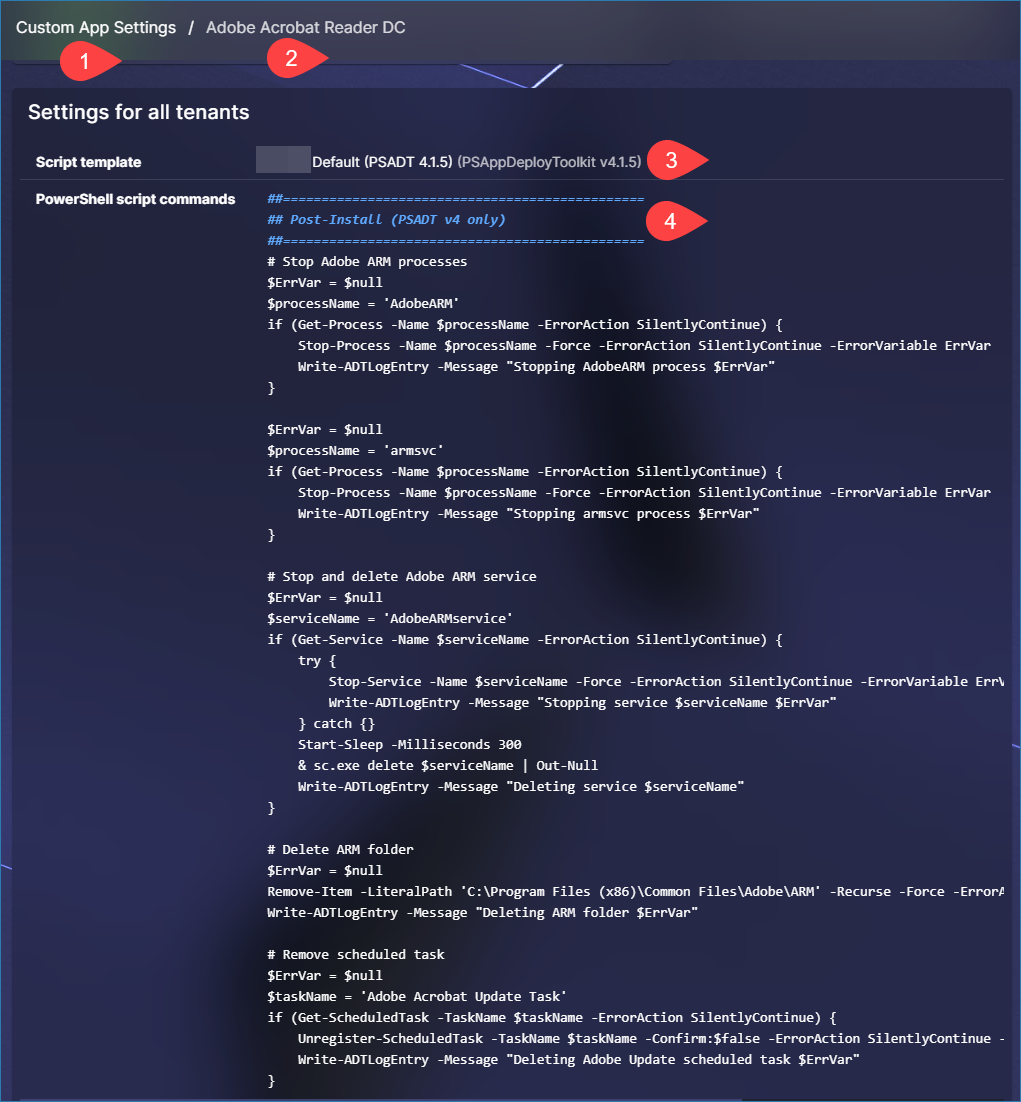
Post-Install example for Adobe Acrobat Reader DC:
Why This Matters
Using Custom App Settings offers several advantages:
- No need to maintain separate wrapper scripts
- Clean integration into the standard PSADT lifecycle
- Clear alignment with PSADT v3 or v4 (depending on your choice)
- Future-proofing through Robopack’s internal handling of script templates
- Improved readability and maintainability of application packages
For environments with complex patching or upgrade requirements, Custom App Settings transform Robopack from a packaging utility into a controlled orchestration layer for application lifecycle management.
As a bonus, here is a post-install script illustrating how I control unwanted Adobe behaviors.
# Stop Adobe ARM processes
$ErrVar = $null
$processName = 'AdobeARM'
if (Get-Process -Name $processName -ErrorAction SilentlyContinue) {
    Stop-Process -Name $processName -Force -ErrorAction SilentlyContinue -ErrorVariable ErrVar
    Write-ADTLogEntry -Message "Stopping AdobeARM process $ErrVar"
}

$ErrVar = $null
$processName = 'armsvc'
if (Get-Process -Name $processName -ErrorAction SilentlyContinue) {
    Stop-Process -Name $processName -Force -ErrorAction SilentlyContinue -ErrorVariable ErrVar
    Write-ADTLogEntry -Message "Stopping armsvc process $ErrVar"
}

# Stop and delete Adobe ARM service
$ErrVar = $null
$serviceName = 'AdobeARMservice'
if (Get-Service -Name $serviceName -ErrorAction SilentlyContinue) {
    try {
        Stop-Service -Name $serviceName -Force -ErrorAction SilentlyContinue -ErrorVariable ErrVar
        Write-ADTLogEntry -Message "Stopping service $serviceName $ErrVar"
    } catch {}
    Start-Sleep -Milliseconds 300
    & sc.exe delete $serviceName | Out-Null
    Write-ADTLogEntry -Message "Deleting service $serviceName"
}

# Delete ARM folder
$ErrVar = $null
Remove-Item -LiteralPath 'C:\Program Files (x86)\Common Files\Adobe\ARM' -Recurse -Force -ErrorAction SilentlyContinue -ErrorVariable ErrVar
Write-ADTLogEntry -Message "Deleting ARM folder $ErrVar"

# Remove scheduled task
$ErrVar = $null
$taskName = 'Adobe Acrobat Update Task'
if (Get-ScheduledTask -TaskName $taskName -ErrorAction SilentlyContinue) {
    Unregister-ScheduledTask -TaskName $taskName -Confirm:$false -ErrorAction SilentlyContinue -ErrorVariable ErrVar
    Write-ADTLogEntry -Message "Deleting Adobe Update scheduled task $ErrVar"
}
When to Use Custom App Settings in Robopack
Use Custom App Settings whenever an application needs more than a simple install.
They are ideal if you need to:
- Run pre- or post-install actions
- Disable vendor defaults (auto-updates, scheduled tasks, pop-ups)
- Apply patching or repair logic
- Reuse the same logic across multiple packages
- Keep deployments clean, transparent, and maintainable without modifying the core PSADT script
Avoid them if the app installs cleanly with no additional requirements or if the logic is a one-off exception.
Rule of thumb: if an application requires more than “install and done”, Custom App Settings are the right tool.
Happy #robopacking!